1. R Fundamentals
1.1. Introduction to R
1.1.4. Working with R Interfaces
This comprehensive guide covers the essential aspects of working with R through different interfaces, providing enhanced information based on extensive research and practical insights from the R programming community.
1. Starting R for the First Time
R offers multiple pathways for users to interact with the language, each designed for different skill levels and use cases. Understanding these options helps you choose the most appropriate interface for your workflow.
R Console/GUI (comes with R installation)
- Lightweight Design: Uses minimal system resources (30-50MB memory)
- Direct Access: Immediate command-line interaction without additional software
- Learning Foundation: Perfect for understanding core R syntax and basic operations
- Server Compatibility: Ideal for remote servers and automated scripts
- Command History: Built-in navigation through previous commands using arrow keys
RStudio (recommended for beginners and professionals)
- Integrated Development Environment: Comprehensive workspace combining multiple tools
- Four-Panel Layout: Source editor, console, environment, and files/plots/help panels
- Enhanced Productivity: Advanced code completion, syntax highlighting, and debugging tools
- Project Management: Built-in organization system for complex analyses
- Version Control: Integrated Git support for collaborative development
- Package Ecosystem: Easy access to over 18,000 R packages through GUI

RStudio IDE interface with four main panels clearly labeled
Enhanced First Steps:
- Installing R: Download from CRAN - choose your operating system
- Verify installation by opening R and checking version information
- Consider installing both 32-bit and 64-bit versions for compatibility
- Installing RStudio: Get the latest version from Posit
- RStudio requires R to be installed first - it acts as an interface, not a replacement
- Choose between open-source and commercial versions based on your needs
- Initial Configuration: Set up your workspace preferences
- Configure appearance themes and editor settings
- Set default working directories and package repositories
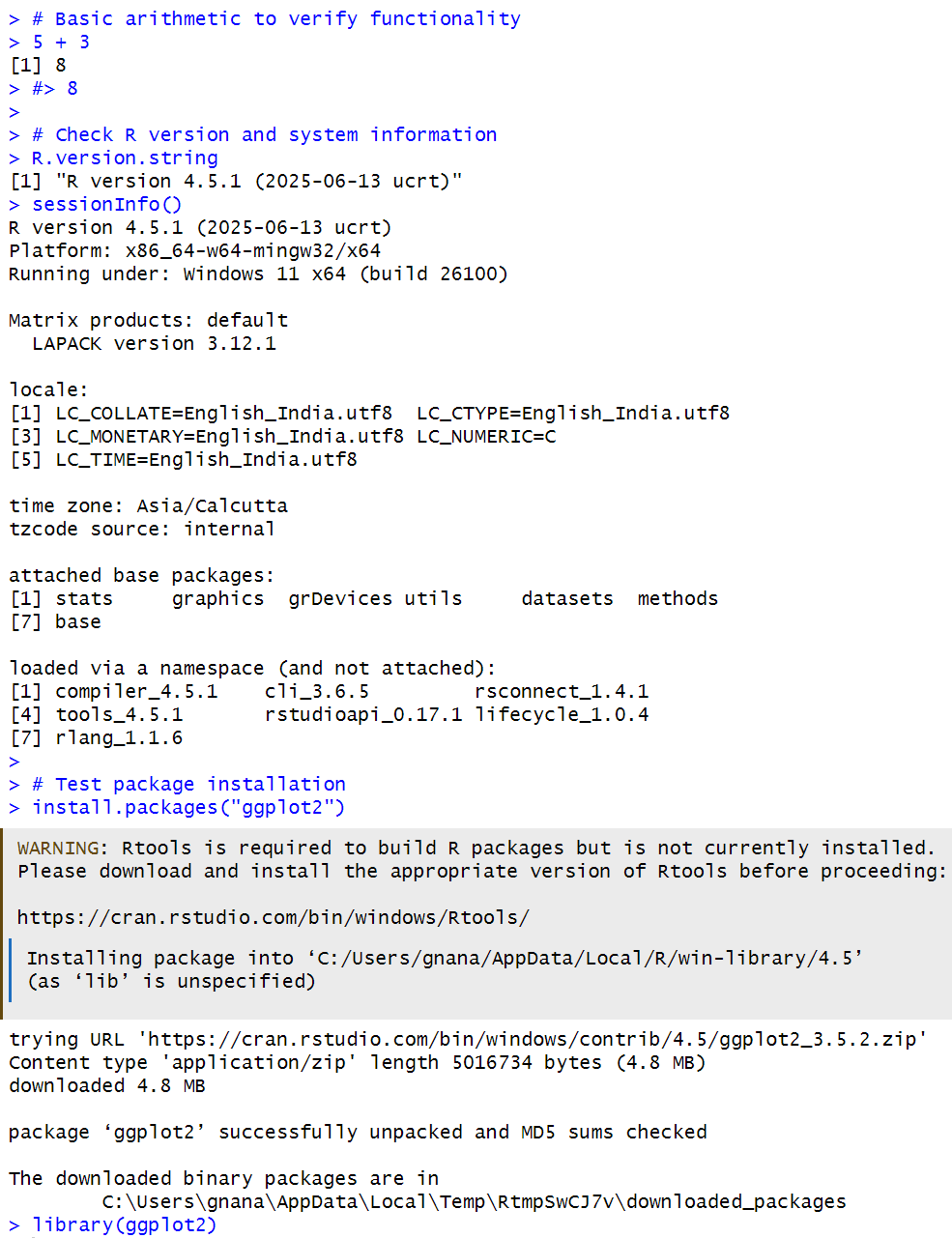
- Test Your Installation:
# Basic arithmetic to verify functionality
5 + 3
#> 8

# Check R version and system information
R.version.string
sessionInfo()

# Test package installation
install.packages("ggplot2")
library(ggplot2)
Output:
2. Understanding the R Console
The R console serves as the fundamental interface for all R operations, providing immediate feedback and interactive computing capabilities.
Core Console Features
- Prompt System: Primary prompt (
>) for new commands, continuation prompt (+) for multi-line expressions - Immediate Execution: Interpreted language with instant results and feedback
- Error Handling: Clear error messages with traceback information for debugging
- Command Completion: Tab-based completion for functions, variables, and file paths
- History Management: Access to previous commands using arrow keys or
history()function

R Console command line interface showing interactive R sessions
Advanced Console Techniques
- Command Recall: Use
Ctrl+Up(Windows/Linux) orCmd+Up(Mac) for searchable history - Multi-line Commands: Break complex expressions across lines for readability
- Output Control: Use
options()to customize display settings and decimal places - Session Management: Save and restore command history with
savehistory()andloadhistory()
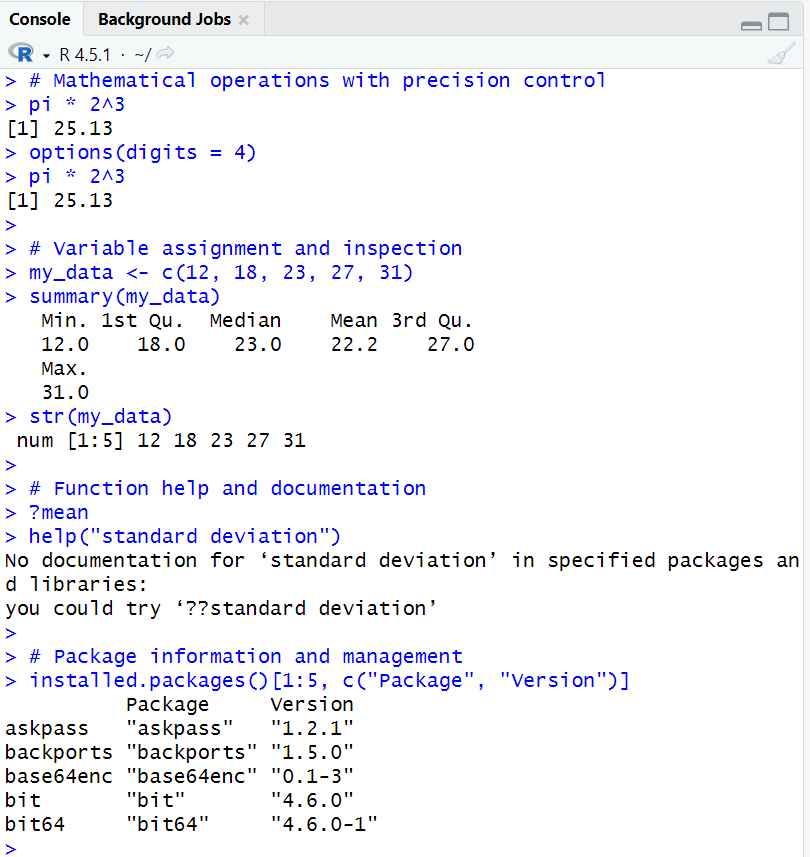
Example Enhanced Session:
# Mathematical operations with precision control
options(digits = 4)
pi * 2^3
#> 25.13

# Variable assignment and inspection
my_data <- c(12, 18, 23, 27, 31)
summary(my_data)
str(my_data)

# Function help and documentation
?mean
help("standard deviation")

# Package information and management
installed.packages()[1:5, c("Package", "Version")]

# Restarting new session will remove options settings
# Ctrl + Shift + F10 in RStudio
Output:
3. Creating and Managing R Scripts
Script-based programming forms the backbone of reproducible research and professional R development, enabling version control, collaboration, and systematic analysis workflows.
Script Development Best Practices
- File Organization: Use meaningful filenames with
.Rextension and consistent naming conventions - Documentation: Include comprehensive comments explaining purpose, inputs, and outputs
- Modular Design: Break large analyses into smaller, focused functions
- Version Control: Implement Git tracking for all script files
- Reproducibility: Ensure scripts can run independently with all required dependencies
Enhanced Script Structure
# ============================================================================
# Project: Data Analysis Pipeline
# Author: [Your Name]
# Date: 2025-07-19
# Purpose: Comprehensive analysis of survey data with visualization
# Dependencies: tidyverse, ggplot2, readxl
# ============================================================================

# Environment setup and package loading =====================================
library(tidyverse)
library(ggplot2)
library(readxl)

# Clear workspace for reproducibility
rm(list = ls())

# Set global options
options(stringsAsFactors = FALSE)
set.seed(42)  # For reproducible random operations

# Data import and cleaning ================================================
# Load data with error handling
tryCatch({
  raw_data <- read_excel("data/survey_responses.xlsx")
  cat("Data loaded successfully:", nrow(raw_data), "observations\n")
}, error = function(e) {
  stop("Failed to load data: ", e$message)
})

# Data validation and cleaning
clean_data <- raw_data %>%
  filter(!is.na(age), age > 0, age < 120) %>%
  mutate(
    age_group = case_when(
      age < 30 ~ "Young",
      age < 50 ~ "Middle-aged",
      TRUE ~ "Senior"
    )
  )

# Analysis functions ======================================================
calculate_summary_stats <- function(data, variable) {
  data %>%
    summarise(
      mean = mean({{variable}}, na.rm = TRUE),
      median = median({{variable}}, na.rm = TRUE),
      sd = sd({{variable}}, na.rm = TRUE),
      min = min({{variable}}, na.rm = TRUE),
      max = max({{variable}}, na.rm = TRUE)
    )
}

# Main analysis ===========================================================
age_summary <- calculate_summary_stats(clean_data, age)
print(age_summary)

# Visualization
age_distribution <- ggplot(clean_data, aes(x = age)) +
  geom_histogram(bins = 20, fill = "steelblue", alpha = 0.7) +
  labs(
    title = "Age Distribution in Survey Sample",
    x = "Age (years)",
    y = "Frequency"
  ) +
  theme_minimal()

# Export results ==========================================================
ggsave("output/age_distribution.png", age_distribution,
       width = 8, height = 6, dpi = 300)

cat("Analysis completed successfully!\n")
cat("Results saved to output directory\n")
4. Managing Your R Workspace
Effective workspace management is crucial for maintaining organized, efficient, and reproducible R sessions.
Workspace Components and Management
- Global Environment: Contains all user-created objects, functions, and data
- Search Path: Determines package and function accessibility order
- Working Directory: Default location for file operations and data import/export
- Session State: Current package loadings, options, and system settings
Enhanced Workspace Strategies
# Comprehensive workspace inspection
ls.str()  # Detailed view of all objects
objects(pattern = "^my_")  # Find objects by pattern
apropos("mean")  # Find functions containing "mean"

# Memory management and optimization
object.size(large_dataset)  # Check memory usage
gc()  # Force garbage collection
rm(list = ls(pattern = "temp_"))  # Remove temporary objects

# Advanced saving and loading
save(model_results, final_data, file = "analysis_session.RData")
save.image("complete_workspace_backup.RData")

# Session information for reproducibility
writeLines(capture.output(sessionInfo()), "session_info.txt")
Project-Based Workspace Organization

RStudio project organization and folder structure
Modern R development emphasizes project-based workflows that ensure reproducibility and collaboration:
- RStudio Projects: Self-contained working directories with consistent file paths
- Directory Structure: Standardized folders for data, scripts, output, and documentation
- Relative Paths: Avoid absolute file paths to ensure portability across systems
- Environment Isolation: Separate package libraries and settings per project
5. Comprehensive Interface Comparison
Understanding the strengths and limitations of each R interface helps optimize your development workflow based on specific needs and constraints.
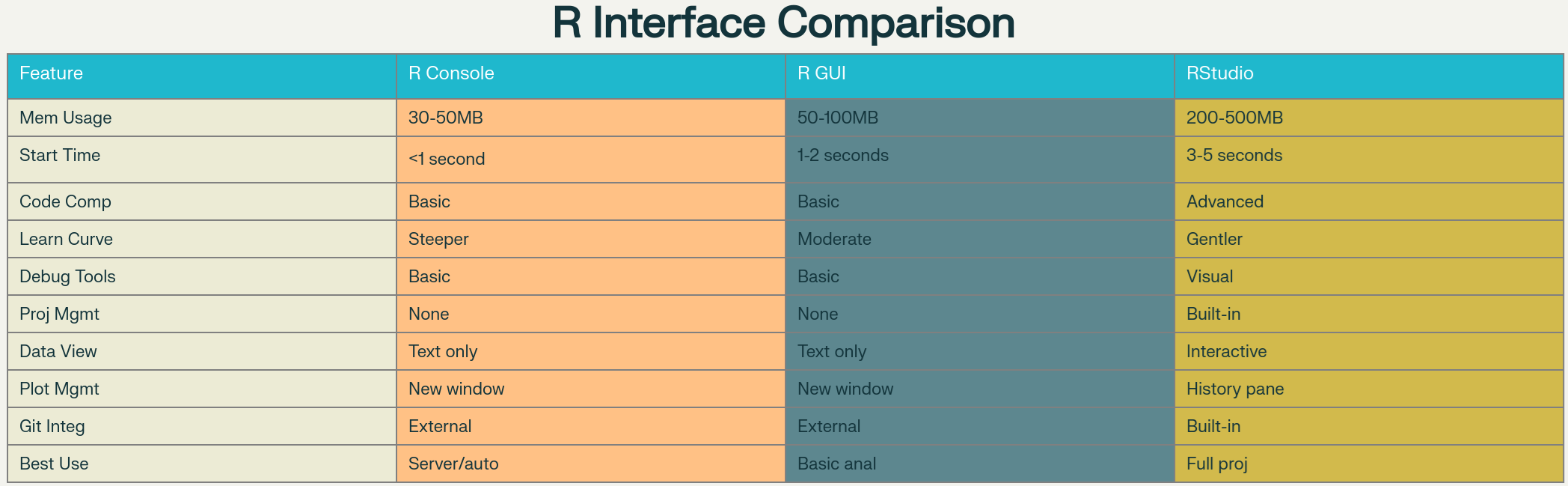
Comprehensive comparison of R interfaces: Console, GUI, and RStudio
Detailed Interface Analysis
Base R Console
- Performance: Minimal overhead, fastest startup, ideal for scripting
- Limitations: No project management, basic debugging, text-only output
- Ideal Users: System administrators, experienced programmers, server environments
- Advanced Features: Scriptable, automation-friendly, minimal dependencies
R GUI (RStudio-like interfaces)
- Balance: Moderate resource usage with enhanced functionality
- Features: Syntax highlighting, basic project management, integrated help
- Limitations: Less sophisticated than RStudio, limited customization
- Use Cases: Educational settings, basic statistical analysis
RStudio IDE
- Comprehensive: Full-featured development environment with professional tools
- Advanced Features: Integrated debugging, version control, package development
- Extensibility: Add-ins, themes, and customization options
- Collaboration: Built-in sharing and publishing capabilities
6. RStudio Deep Dive
RStudio represents the gold standard for R development environments, offering sophisticated tools that scale from beginner tutorials to enterprise-level data science projects.
Panel System Architecture
- Source Editor (Top-Left):
- Multi-tab interface for scripts, R Markdown, and data files
- Advanced syntax highlighting with customizable themes
- Code folding, auto-indentation, and smart completion
- Integration with version control systems (Git, SVN)
- Real-time error detection and code diagnostics
- Console Panel (Bottom-Left):
- Interactive R session with enhanced features
- Command history search and filtering capabilities
- Multi-line command support with visual indicators
- Integration with debugging and profiling tools
- Environment/Data Panel (Top-Right):
- Interactive object browser with data preview
- Memory usage monitoring and object inspection
- Command history with search and filtering
- Connection management for databases and external services
- Utility Panel (Bottom-Right):
- File browser with integrated operations
- Plot history and export functionality
- Package management with GUI installation
- Comprehensive help system with search capabilities
- HTML preview for web content and reports

7. Essential Keyboard Shortcuts and Productivity
Mastering keyboard shortcuts dramatically improves coding efficiency and workflow management in RStudio.

Essential RStudio keyboard shortcuts organized by category
Productivity Enhancement Techniques
Code Completion and Templates
- Smart Completion: Context-aware suggestions for functions and variables
- Code Snippets: Expandable templates for common patterns
- Custom Snippets: User-defined shortcuts for frequently used code blocks
- Function Signatures: Automatic parameter hints and documentation
Advanced Editing Features
- Multiple Cursors: Edit several locations simultaneously
- Column Selection: Select and edit rectangular text blocks
- Code Folding: Hide sections of code for better overview
- Automatic Formatting: Consistent indentation and style application
Project and Session Management
- Session Restart: Regular R session clearing for reproducibility
- Project Switching: Quick navigation between different analyses
- File Navigation: Fast file opening with fuzzy search
- Workspace States: Save and restore complete project environments
8. Debugging and Troubleshooting
Professional R development requires sophisticated debugging capabilities to identify and resolve complex issues in data analysis workflows.

RStudio debugging tools and interface showing breakpoints and debug console
Comprehensive Debugging Arsenal
Interactive Debugging Tools
- Breakpoints: Visual debugging with pause-and-inspect functionality
- Step Execution: Line-by-line code examination with variable inspection
- Call Stack Inspection: Trace function call hierarchy during errors
- Variable Watching: Monitor specific objects during execution
Advanced Debugging Techniques
# Browser-based debugging
my_function <- function(x, y) {
  browser()  # Pause execution here
  result <- x + y * 2
  return(result)
}

# Conditional debugging
debug_function <- function(data) {
  if (any(is.na(data))) {
    browser()  # Only debug when NA values present
  }
  processed_data <- na.omit(data)
  return(processed_data)
}

# Error trapping and handling
safe_analysis <- function(dataset) {
  tryCatch({
    # Potentially problematic operations
    result <- complex_calculation(dataset)
    return(result)
  }, error = function(e) {
    cat("Error occurred:", e$message, "\n")
    return(NULL)
  }, warning = function(w) {
    cat("Warning:", w$message, "\n")
  })
}
9. Package Management and Extensions
R's extensive package ecosystem provides specialized tools for virtually every data science application, with sophisticated management systems for dependency resolution and environment reproducibility.
Modern Package Management
- CRAN Integration: Access to over 18,000 peer-reviewed packages
- Development Tools: Direct installation from GitHub, GitLab, and other repositories
- Version Control: Specific package versions for reproducible environments
- Dependency Resolution: Automatic handling of package requirements and conflicts
RStudio Add-ins Ecosystem
- Code Enhancement: Automated formatting, linting, and style checking
- Productivity Tools: Custom shortcuts, templates, and workflow automation
- Specialized Functions: Domain-specific tools for statistics, visualization, and reporting
- Community Extensions: User-contributed tools for enhanced functionality
# Enhanced package management workflow
# Install development tools
install.packages(c("devtools", "remotes", "pak"))

# Install from various sources
pak::pkg_install("tidyverse")  # CRAN packages
devtools::install_github("username/package")  # GitHub packages
remotes::install_url("http://package.url/package.tar.gz")  # URL packages

# Package environment management
renv::init()  # Initialize reproducible environment
renv::snapshot()  # Save current package versions
renv::restore()  # Restore exact package versions
10. Advanced Customization and Themes
RStudio offers extensive customization options to create personalized development environments optimized for individual preferences and workflow requirements.
Visual Customization Options
- Global Themes: Modern, Sky, and Classic interface styles
- Editor Themes: Comprehensive color schemes for syntax highlighting
- Custom Themes: User-created themes using CSS and tmTheme formats
- Layout Management: Configurable panel arrangements and sizes
Advanced Customization Techniques
# Programmatic theme management
rstudioapi::getThemeInfo()  # Current theme information
rstudioapi::addTheme("path/to/custom/theme.rstheme")  # Add custom theme
rstudioapi::applyTheme("Custom Theme Name")  # Apply theme

# Workspace customization
usethis::edit_r_profile()  # Customize R startup
usethis::edit_r_environ()  # Set environment variables
Conclusion
Working effectively with R interfaces requires understanding the strengths and appropriate use cases for each option. While the R console provides direct access to the language core, RStudio offers a comprehensive development environment that scales from learning to professional data science applications.
The key to success lies in:
- Choosing the right interface for your skill level and project requirements
- Mastering keyboard shortcuts and productivity features
- Implementing proper project organization and workspace management
- Leveraging debugging tools for efficient problem-solving
- Customizing your environment for optimal productivity
This enhanced guide provides the foundation for productive R programming across all interface options, with emphasis on modern best practices and professional development workflows.