2.1.2. RStudio Projects
1. RStudio Projects
**1.1. What are RStudio Projects?**
RStudio Projects are a powerful way to organize your R code, data, and related files in one place. Using projects helps keep your work tidy, reproducible, and easy to manage.
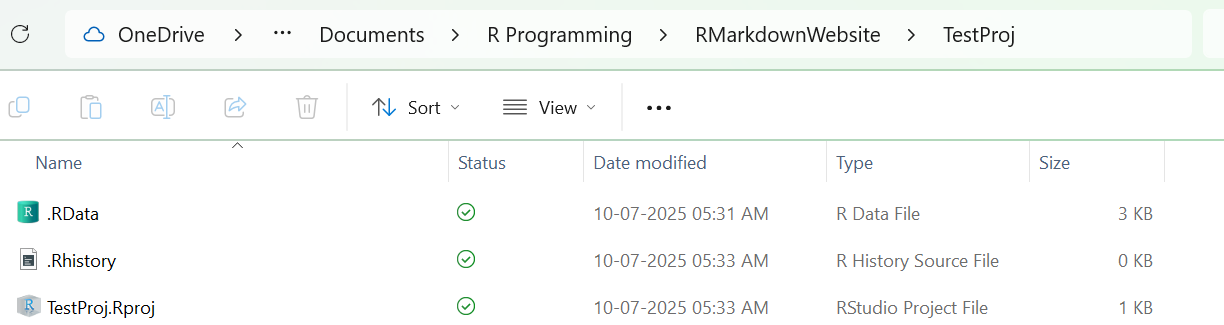
- An RStudio Project is simply a folder (directory) that contains all the files for a particular analysis or task.
- Each project has a special file with the
.Rprojextension. - When you open an
.Rprojfile, RStudio recognizes the folder as a project and sets it as the "working directory" for your session.
**1.2. Creating a New RStudio Project**
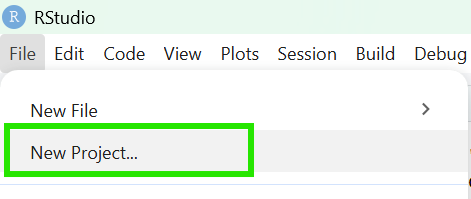
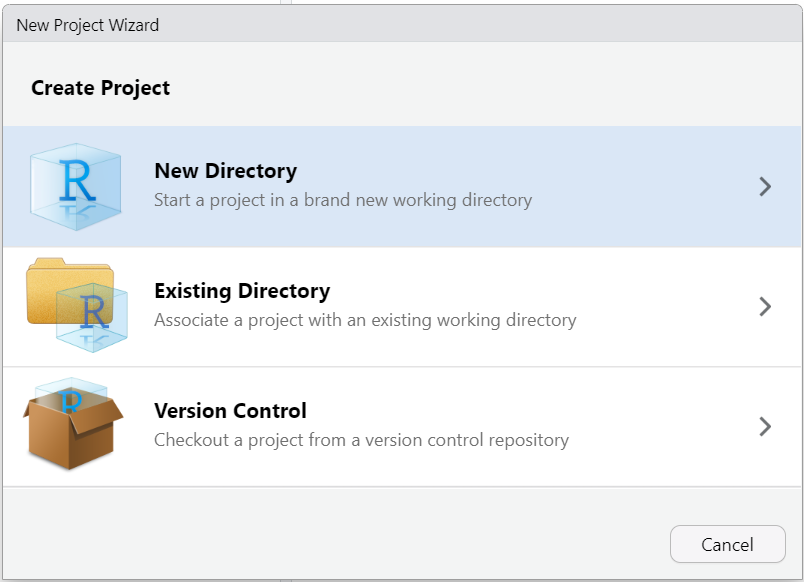
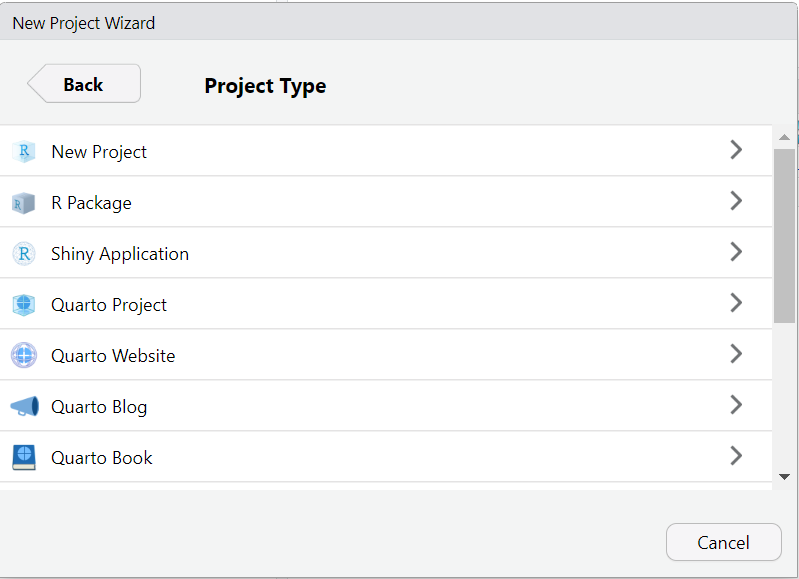
- You can create a new project by clicking the RStudio Projects button (usually in the top-right corner of RStudio).
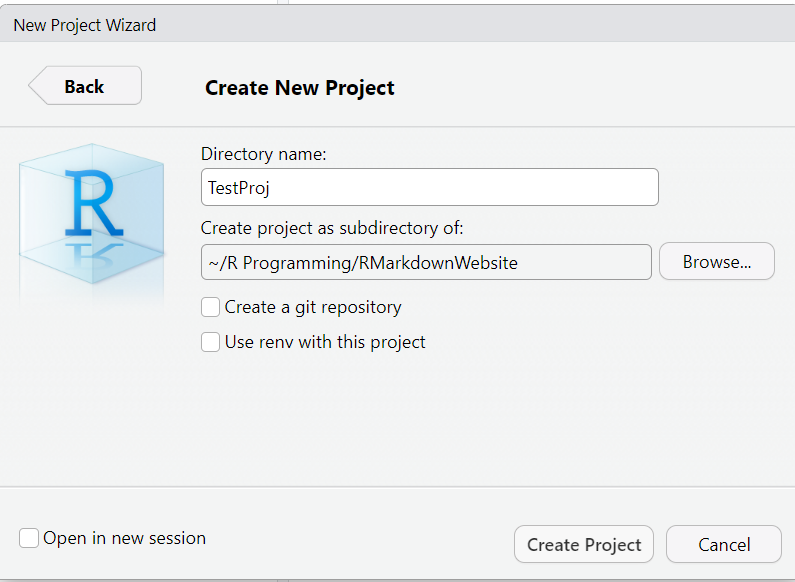
- Follow the prompts to create a new folder or use an existing one.
- RStudio will create a
.Rprojfile in that folder.
**1.3. Benefits of Using RStudio Projects**
- Organization: All your scripts, data, and outputs are kept together in one folder.
- Reproducibility: The project remembers your settings and open files, making it easy to pick up where you left off.
- Consistent Working Directory: RStudio automatically sets the working directory to the project folder, so you don’t have to use
setwd()manually. - Session Management: When you open a project, RStudio restores your previous session, including open files and settings.
- Integration with Packages: Packages like
herecan detect the project root, making file paths easier and more robust.
**1.4. How RStudio Projects Work**
- The
.Rprojfile tells RStudio that the folder is a project. - Opening the
.Rprojfile launches a new RStudio session for that project. - The state of your project (open files, history, settings) is saved and restored each time you open it.
- This makes it easy to switch between different projects without losing your place.
2. The here Package: Simplifying File Paths in R Projects
The here package is designed to make working with file paths in R projects much easier and less error-prone.
- It helps you define the starting point (root) for all your file paths within a project.
- The root is usually the directory containing your
.Rprojfile. - This makes your code portable and robust, so it works on any computer without changing file paths.
2.1. Installing and Loading the here Package
To use the here package, you first need to install it (if you haven't already) and then load it:
install.packages("here")
library(here)
- Use quotes for the package name in
install.packages(), but not inlibrary().
2.2. Setting and Understanding Your Project Directory
- After loading the here package, you can check your project directory with
here(). - The output of
here()will show the path to your project root (where the.Rprojfile is). - This is different from
getwd(), which shows your current working directory (which can change). here()always points to the project root, regardless of where you are in your file browser or console.
Visual Directory Example:
Suppose your project directory looks like this:
my_project/
├── my_project.Rproj
├── data/
│   └── raw_data/
│       └── intro_code_object.rda
├── code/
│   └── raw_code/
│       └── intro_code.R
└── analysis/
here()will always return the path tomy_project/, no matter where you are in the subfolders.
2.3. Using here() for File Paths
- To refer to files or folders within your project, use
here()with each subdirectory or file as a separate argument.
Example:
here("code", "raw_code", "intro_code.R")
- This creates a path to
intro_code.Rinside thecode/raw_code/folder, starting from your project root.
Visual:
here("code", "raw_code", "intro_code.R")
# Returns: "my_project/code/raw_code/intro_code.R"
2.4. Saving and Loading Files with here()
You can use here() to save or load files anywhere in your project:
# Save an object
save(introcode_data_object, file = here::here("data", "raw_data", "intro_code_object.rda"))

# Load an object
load(here::here("data", "raw_data", "intro_code_object.rda"))
- The
::notation specifies you are using thehere()function from the here package.
2.5. Why Use the here Package?
- Portability: Your code will work on any computer without changing file paths.
- No setwd() Needed: Avoids the need to use
setwd()and hard-coded paths. - Less Error-Prone: Reduces typos and mistakes in file paths.
- Works with RStudio Projects: Automatically finds the project root using the
.Rprojfile. - Easy Collaboration: Makes it easier to share your project with others.
Tip: Always use here() for file paths in your projects for best practices and reproducibility.